Body
Overview
This Knowledge Base article explains libraries in SharePoint.
SharePoint data management involves organizing, securing, and controlling the lifecycle of documents and information using libraries, metadata, content types, and versioning. Key strategies include replacing deep folder structures with metadata tags for improved searchability, implementing automated retention policies, and establishing clear site structures for collaboration.
Document Libraries
A document library provides a secure place to store files where you and your co-workers can find them easily, work on them together, and access them from any device at any time. For example, you can use a document library on a site in SharePoint to store all files related to a specific project or a specific client. Adding files or moving files between folders is as easy as dragging and dropping them from one location to another.
In a document library, you can:
-
Add, edit, delete a file, folder, or link from a SharePoint document library, co-author, and download documents.
-
Control who has access to a library, a folder within a library, or an individual file within a library.
-
Track the activity on a file, such as when it was last modified, and receive a notification when something has changed.
-
Create a custom view of a document library
-
Share files or folders with others.
-
Add a link in a document library to something that is stored outside the library, for example, a link to a file located in a different library or even a link to an external web page.
-
Highlight a link, file or folder in a document library so you and others can get to them quickly.

Navigating Around A Document Library
In the top left of the document library page is the main menu.
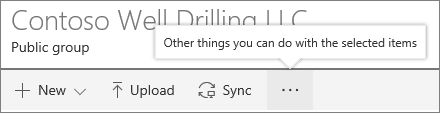
Here you can create a new folder, document, or a link to something that is located outside the document library,
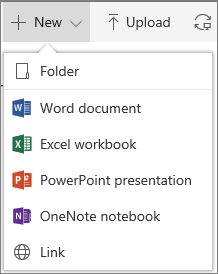
Note: The list of document types will vary depending on your permissions and how your site was set up.
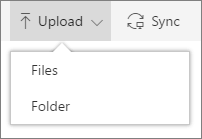
You can also upload a folder or files.
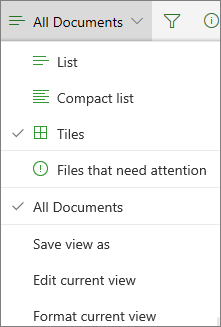
At the top right of the document library page, click View options to change the document library view to List, Compact, Tiles view. If using Internet Explorer, you can open the document library in Windows File Explorer by clicking View in File Explorer. You can also save a custom view by clicking Save view as or, if you are a library owner or administrator, you can edit or create views on the library settings page by clicking Edit current view.
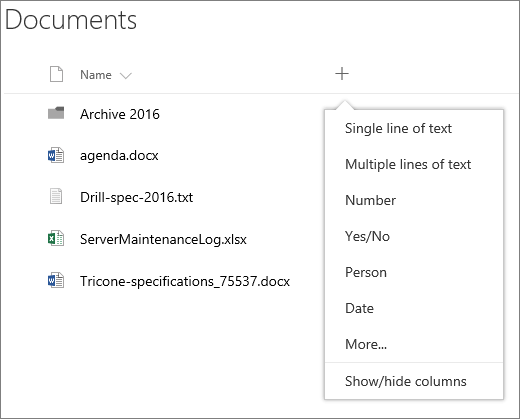
You can add new columns and select the columns to display by clicking + or + Add columns on the far-right side of the column headers if you're in list view, or, by clicking  and then clicking
  on the far-right side of the column headers if you're in Tiles view.
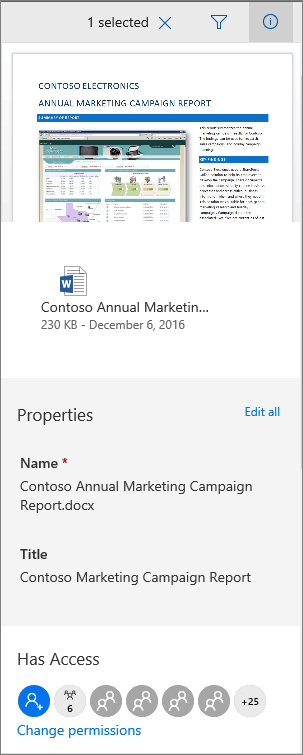
You can view and edit information about a file or folder, such as required properties, recent activity or whom a file is shared with, in the information pane. To show or hide the information pane, select a file or folder and click  on the right-hand side of the main menu. You can also view the information pane by right-clicking a file or folder and selecting Details.
When you select a folder or file, the menu at the top left of the document library changes to a list of actions you can perform on that folder or file.

Media Libraries
A media library in SharePoint is a specialized document library designed to store, manage, and share rich media assets such as images, audio, and video files. It serves as a central repository for digital assets, offering thumbnail-centric views, automatic metadata extraction for images, and specialized content types to manage branding assets or video libraries efficiently.

The features of a SharePoint media libraries include:
- Asset Library App: A pre-configured type of library tailored for media.
- Thumbnail Views: Displays images and videos visually rather than just as a list of files.
- Built-in Preview: Allows for playing videos or viewing images within the browser.
- Metadata: Uses specific content types to categorize media.
- Sharing and Embedding: Videos can be easily shared via links or embedded into modern SharePoint pages using the File and Media Web Part or Video Web Part.
Document Retention
Say you want to retain resumes within the Human Resources team for five years and then purge. If you have a separate doc library, this becomes a super easy exercise.

Best Practice
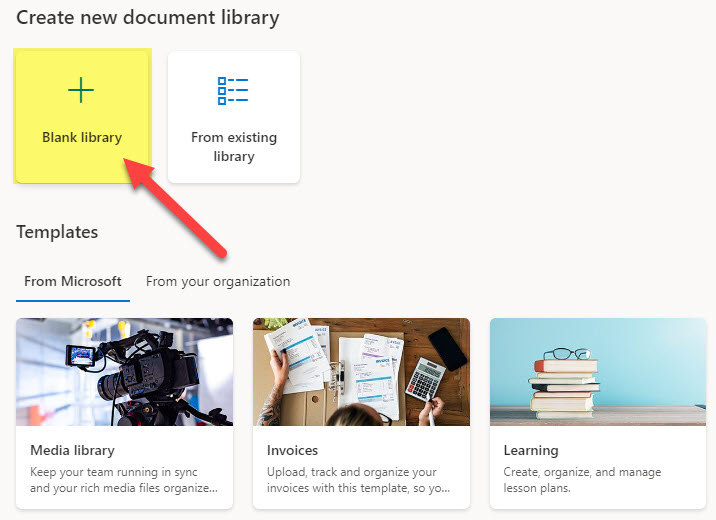
Create Multiple Libraries
Kind of related to the point made above, even if you create multiple sites, you should also create multiple libraries as well. Usually, the number of documents would dictate whether or not another document library should be created. However, there are other reasons as well, like sync, metadata, and security.
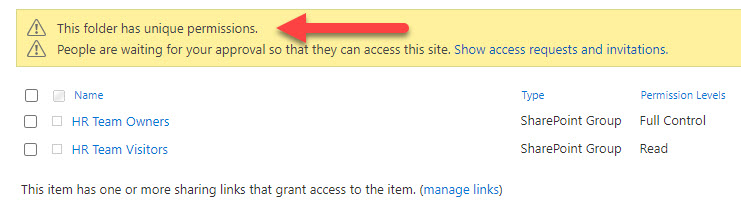
Avoid lots of Unique permissions
I would take this advice with a grain of salt. Breaking permissions inheritance between files and folders and a SharePoint site was always considered taboo in SharePoint. However, the reality is that with the modern way we collaborate and share content across the organization and externally, we will have unique permissions all over the place, no matter what you want. With that being said, the recommendation here, in this specific context, is that sometimes it might make sense to create a separate site altogether instead of breaking and creating lots of unique permissions on several folders. But if you need to hide a few files or folders on a site, that is fine.
Beware of SharePoint Limits
Just like when you drive on a road, you must be aware of the speed limit; you must be aware of the technical limitations we have in SharePoint. Not many limits will impact what you do, but the ones that exist are pretty important, such as the number of documents in a library, sync limit, or 400-character URL limit. As such, proper information architecture is critical when building out SharePoint.
Additional Resources