Overview
This articles explains how to move files to folders or another SharePoint Document Library.
How to move or copy a file to a different folder
- Select files or folders in a SharePoint library to move or copy.
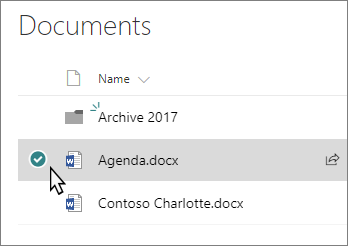
- On the command bar along the top, select Move to or Copy to.
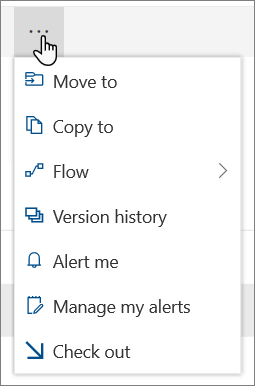
Note: If you don't see Move to or Copy to on your command bar, select the ellipsis icon  (More) and then select Move to or Copy to.
- Choose a destination in the current library, OneDrive, or another SharePoint site, then select Move to or Copy to. If a site isn't listed, at the bottom of the site list on the left, select More places.
- If you want to move or copy your files to a new folder, select the new folder icon
 in the top right corner to add a new folder. Enter a name for the folder and select Create. You can then select the new folder and select Move to or Copy to.