Description
Eduroam is a worldwide educational wireless network available at all Phoenix College locations. Eduroam allows students, faculty, and staff from participating institutions (including all MCCCD campuses) to quickly and securely access the Internet when visiting other participating institutions.
These instructions will help connect student and employee personally-owned devices to the eduroam wireless network. Eduroam is the recommended wireless network for anyone with an MEID or other Eduroam-eligible login, as it offers a more secure connection with no bandwidth limitations*.
*College-owned devices should automatically connect to the PCSecure network, and guests without an MEID or other eduroam-eligible credential should use the "Maricopa" guest wireless network.
Instructions
Windows Instructions
Apple macOS Instructions
Apple iOS/iPadOS Instructions
Android Instructions
Chrome Book
Microsoft Windows
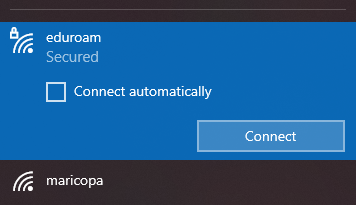
- When you are at a participating location, search for and connect to the “eduroam” wireless network.
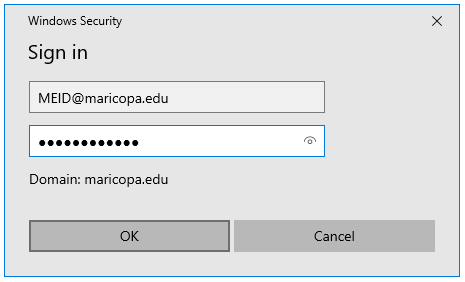
- When prompted, use your MEID@maricopa.edu and your MEID password in the prompt and press OK to connect
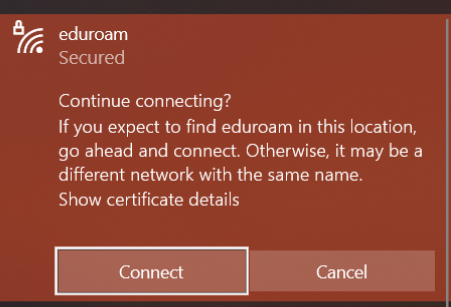
- When prompted asking if you expect to find “eduroam” in this area, click Continue.
Apple macOS
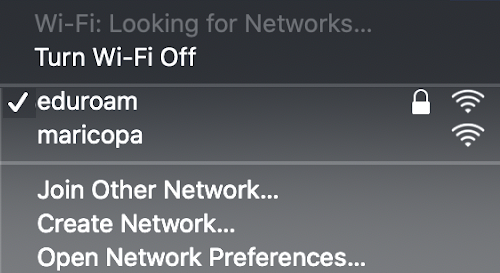
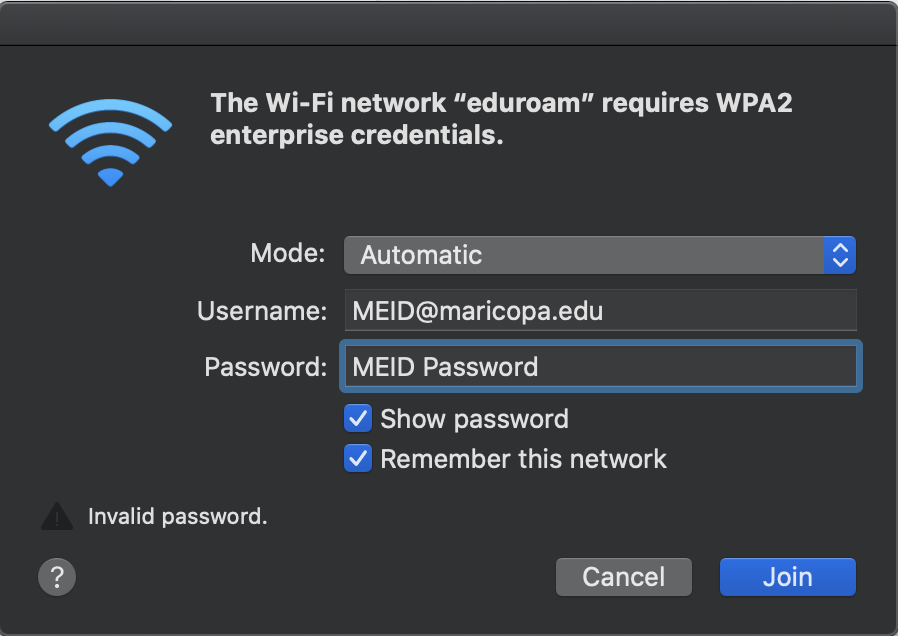
- When you are at a participating location, search for and connect to the “eduroam” wireless network.
- When prompted, use your MEID@maricopa.edu and your MEID password in the prompt and click join.
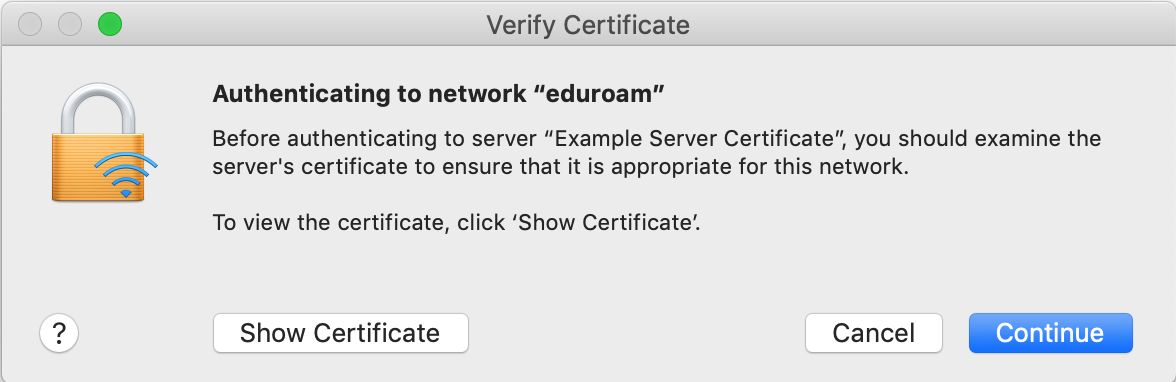
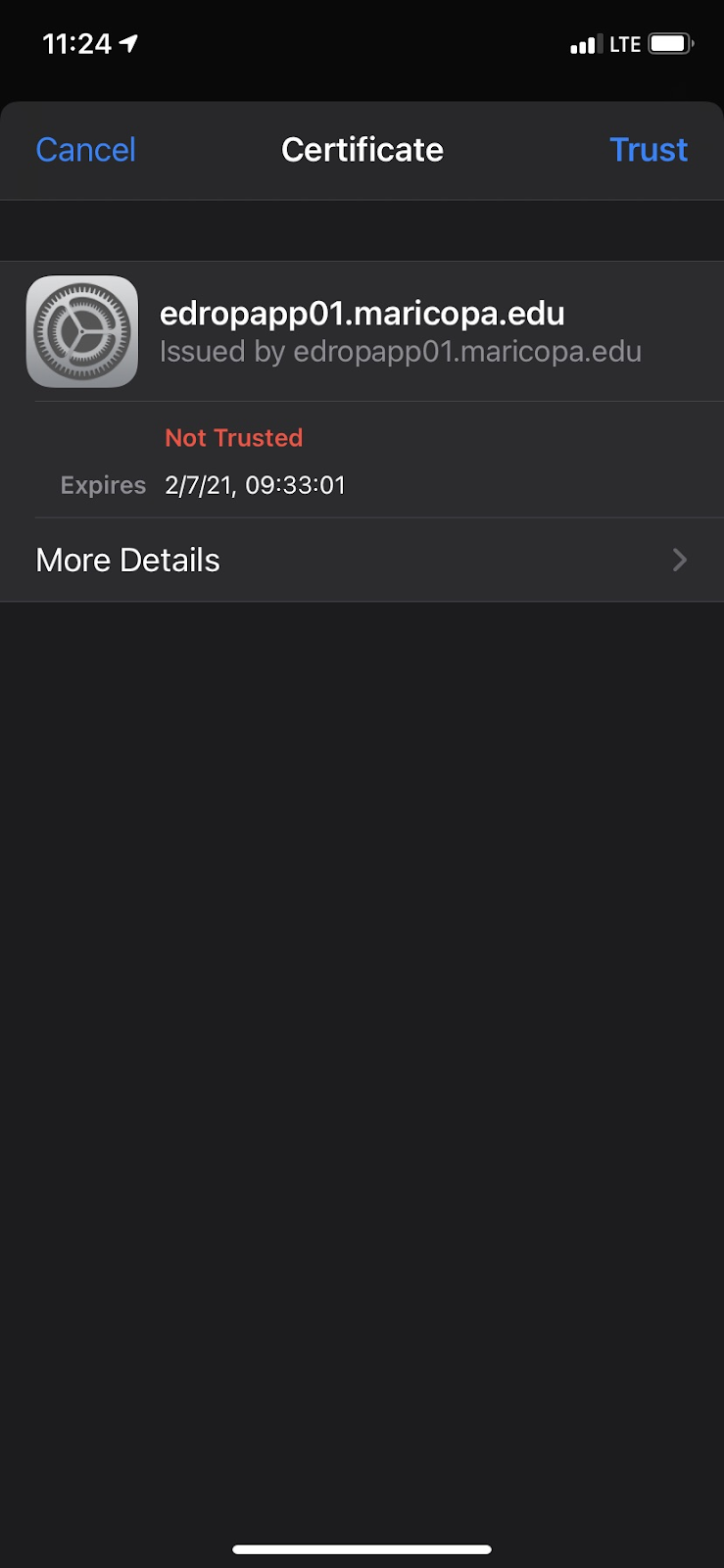
- When prompted to verify the network certificate, click “Continue” to accept it and connect to eduroam.
Apple iOS/iPadOS
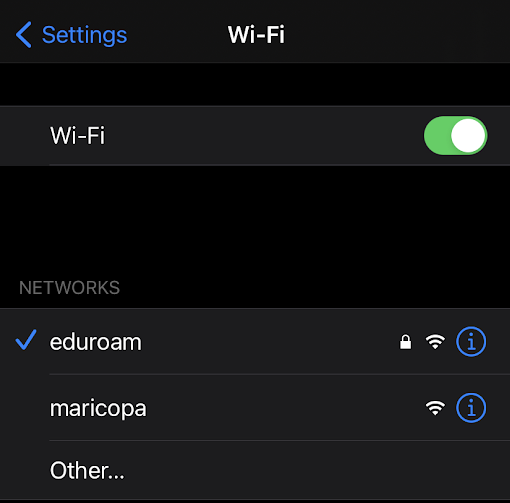
- When you are at a participating location, search for and connect to the “eduroam” wireless network.
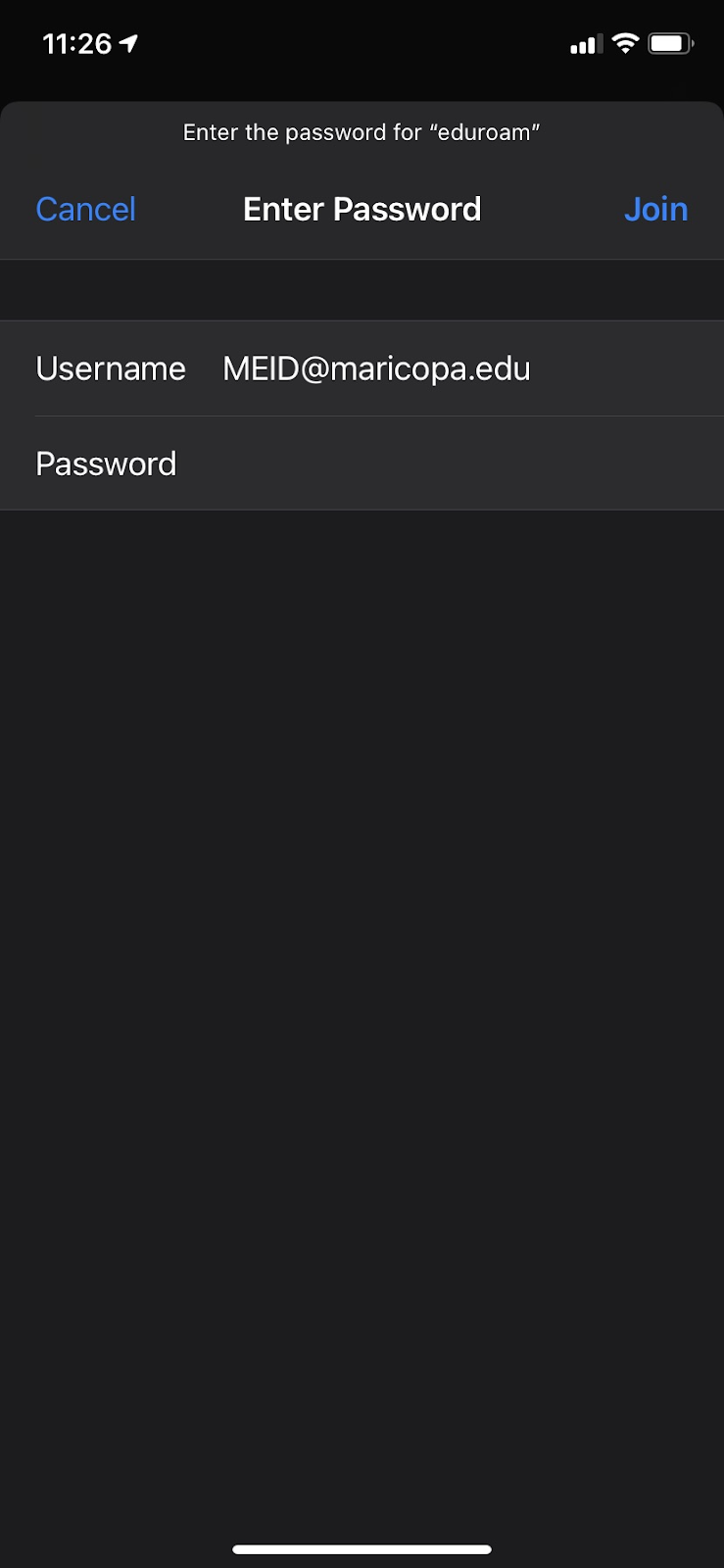
- When prompted, use your MEID@maricopa.edu and your MEID password in the prompt and click join.
- When prompted to verify the network certificate, click “Continue” to accept it and connect to eduroam.
Android
- When you are at a participating location, search for and connect to the “eduroam” wireless network.
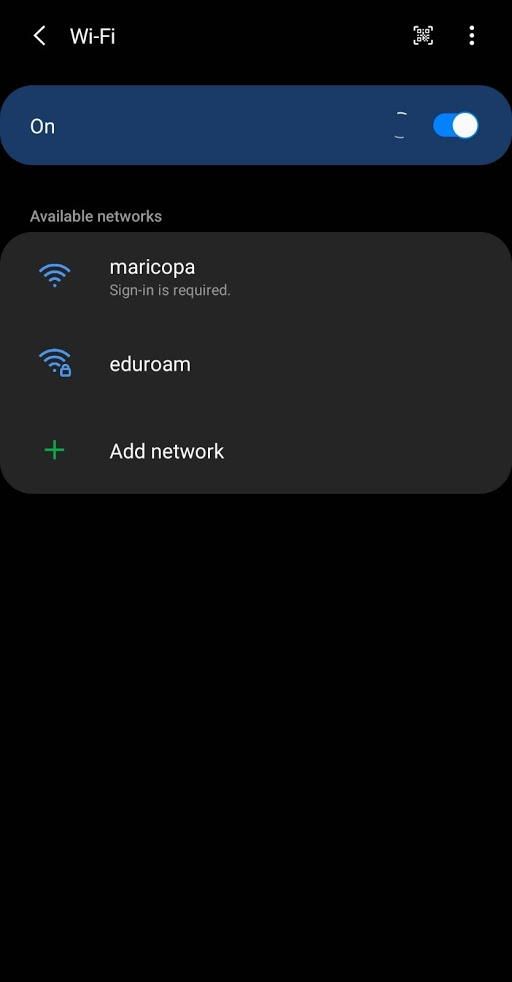
- When prompted, enter your maricopa.edu email address (account) in this format, MEID@maricopa.edu. For the password, enter your MEID password.
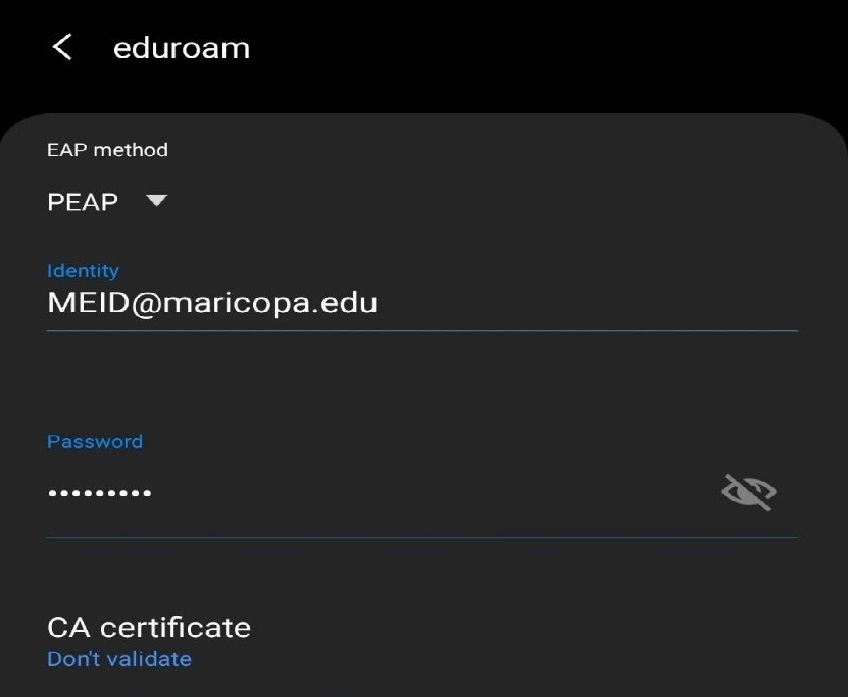
- Under CA CERTIFICATE select “Don’t Validate”.
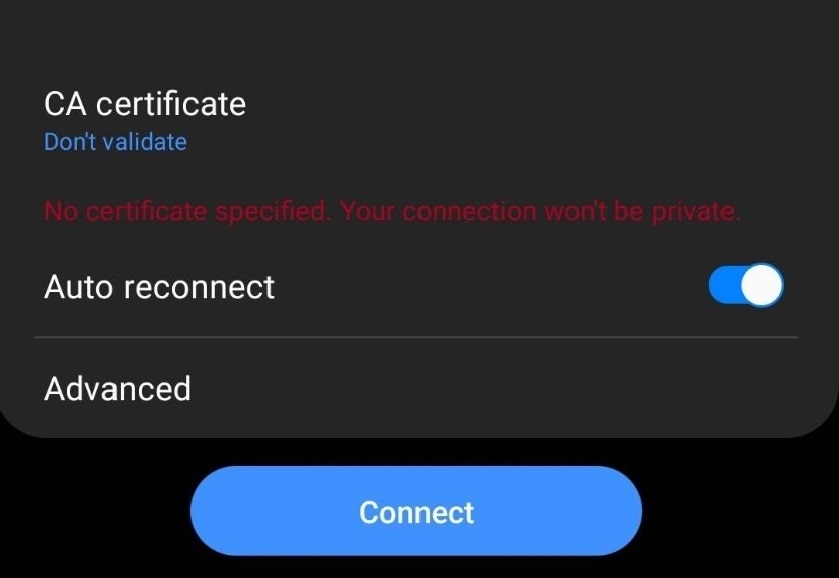
- Select Advanced
- Under Anonymous Identity enter anonymous@maricopa.edu
- Select Save and connect
Chrome Book
- Click the WiFi icon at the bottom right of the screen.

- Click the section labeled eduroam from the menu.
-
Enter Wi-Fi Network Settings for eduroam:
NOTE: In some instances, you may have to change the Server CA Certificate to 'Do Not Check'.
-
Below are the wireless settings for Chrome Books.

- SSID: eduroam
- EAP Method: PEAP
- Phase 2 Authentication: MSCHAPv2
- Server CA Certificate: Default
- User Certificate: None Installed
- Identity: meid@maricopa.edu
- Password: Password
- Anonymous Identity: Empty
NOTE: Enter your Maricopa credentials as follows “meid@maricopa.edu”. If you do not do this, you WILL receive an error message.
- Click "Connect"
- If you can't connect, please delete eduroam from your known networks and then manually add it again, but change the CA Certificate to Do not check. If that does not work, switch it back to Default on the same screen and try again. The third time, try changing it back to Do not check again. If the third time does not work, please visit the Service Desk for further assistance.